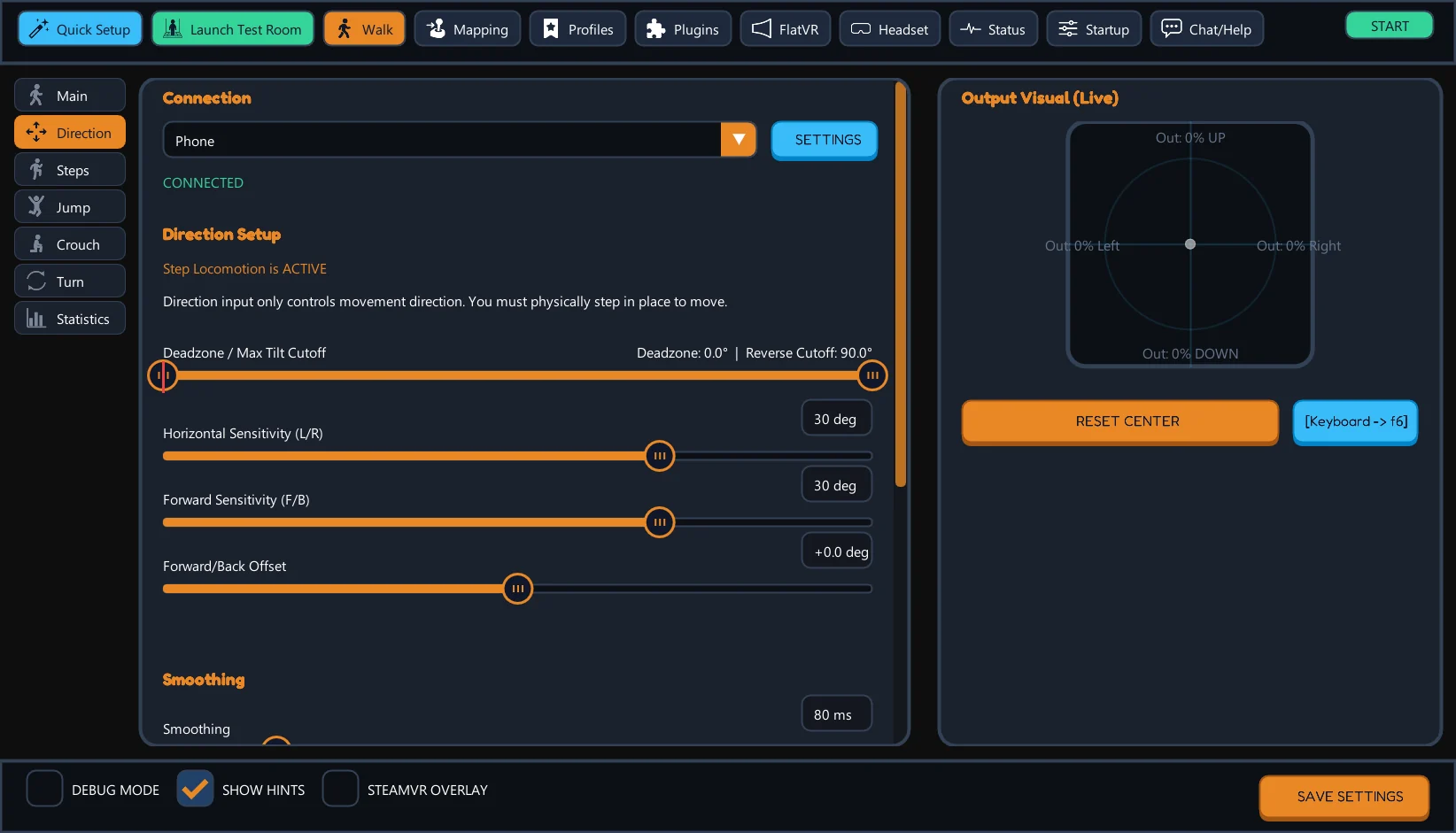
Which way you walk. Direction reads a lean of your head or chest - or a controller stick - and turns it into the direction of the stick the game gets. When you lean to walk, this page also sets how fast you go. When you walk in place, it only sets the direction and the speed comes from Steps.
The Connection list at the top offers:
Plugins can add their own sources to the list. Sources that belong to a VR runtime (SteamVR Tracker, OpenXR (In-Game), FlatVR) are offered only when they match the Engine on Main; the Custom engine offers all of them. How to connect each device - Wi-Fi and ports for a phone, the SlimeVR Server, USB receivers - is on Inputs. This page only covers what Direction does with the signal.
Under the list a word tells you whether the device is talking to BodyWalkVR: CONNECTED (green) while data arrives, DISCONNECTED (red) when nothing has come for two seconds. With Forward Only it reads FORWARD ONLY.
SETTINGS beside the list opens a window in two steps:
Back returns to the first step, Cancel closes the window, Finish closes it after the second.
Quick Setup does the same with pictures, one step at a time - see Quick Setup.
A device turns in three ways. For a phone or tracker the rows are called Roll, Pitch and Yaw; for a headset (SteamVR Tracker, OpenXR, FlatVR) they are called Lean Fwd/Back, Lean Sideways and Turn. Each row says what that rotation does:
The minus sign is the invert - there is no separate invert switch. If leaning forward walks you backwards, change Y to -Y. If leaning forward moves you sideways, the two rows are swapped: give the forward/back row Y and the sideways row X. The bar beside each row moves as you lean (green one way, orange the other, grey when the row is None), which is the quickest way to see which row is which.
Two settings with nearly the same name that do different things:
Picture the stick you push with your body. Nothing moves until your lean passes the Deadzone. From there the stick goes further the more you lean, and it is fully pushed when the lean reaches the sensitivity angle. The Speed Curve decides how fast it gets there. Past the Max Tilt Cutoff the stick lets go completely.
An orange line above the sliders says when another page sets the speed: Step Locomotion is ACTIVE (walking in place - your lean only steers), Stick + Steps is ACTIVE, or Forward and strafes mode is enabled.
The Deadzone, the cutoff and both sensitivities are also shown on Main while you lean to walk. It is one setting in two places: change it on either page.
How speed grows between the Deadzone and a full lean. It matters most against motion sickness: a gentle start lets you walk slowly and precisely, and full speed only comes with a deep lean.
The curve is shown only while the lean sets the speed. With walking in place on it is hidden, because the speed comes from your steps - the Steps page has its own Speed Curve. On this page you choose Math Curve or Custom Equalizer under the sliders, and the graph sits in the right column under RESET CENTER. Main shows the same curve.
Reading the graph.
The curve shapes the speed; it does not change how far you lean for full speed. For that, use the sensitivity sliders. If speed comes on too suddenly, make the curve gentler at the start (exponent above 1.0) rather than raising the sensitivity.
Smoothing is not offered with Forward Only or Controller Stick, which have no lean to smooth.
Two extra buttons that fire when you lean far. Both watch the same lean, in any direction, and both are drawn as rings on the visualizer. They are offered for lean sources, not for Forward Only, Controller Stick or Only Forward. They also work while you walk in place - there the lean steers, and a deep lean still holds Sprint. For sprint by stepping harder, use the Sprint on Steps.
Dodge is a second, wider ring - pink on the visualizer. Lean past it and the dodge button is pressed. Your lean already points the stick, so the game gets the direction and the dodge together: lean hard left and you roll left.
For players who want to walk in place but steer with the thumb. With Controller Stick as the source the line reads Stick Direction is ACTIVE and there are no angles, deadzones or curves to set. SETTINGS picks the runtime and the hand.
It needs walking in place: with steps off, the stick simply works as usual in the game. With steps on and the SteamVR Hook, OpenXR API Layer or OpenComposite output, the stick is taken away from the game so it cannot move you on its own - the pages say Stick + Steps is ACTIVE. STOP gives the stick back to the game; START takes it again. With other outputs the game still gets the stick as well.
Normally you walk where the direction source points. With the headset as the source that means you walk where you look - glance to the side and you veer off. Decouple Head Direction makes you walk where your chest faces instead, so you can look around freely while walking straight. It needs a second source for the chest - a tracker, or none at all with Virtual Chest.
The right column is the stick being sent, live - the same square as the Visualizer on Main, with the same rings and the Out: percentages on the edges. Lean and watch the dot: forward should take it up, right should take it right. If it goes sideways when you lean forward, the axis mapping needs swapping.
RESET CENTER under it records your current stance as upright and facing forward. Stand straight, face forward and press it whenever the dot sits off centre while you stand still. The button beside it is its binding (F6 by default); click it to pick another key or a controller button. It is the same button and binding as on Main.
While you lean to walk, the Speed Curve graph sits under RESET CENTER.