Quick Setup takes you from nothing to your first walk in a few screens: it asks which system your game runs on and how you want to walk, connects the device, tunes it and picks the output. It writes the same settings the tabs hold, so anything it sets can be changed on the tabs later. After it: a try in the Test Room, then your game.
This is the Engine. Pick SteamVR for a SteamVR game - most PC VR games on Steam. Pick OpenXR for a game that runs on OpenXR directly, through Virtual Desktop, Quest Link or Pico Connect without SteamVR. OpenComposite appears once its plugin is installed, FlatVR while the FlatVR module is on (for flat games shown in the headset). The answer decides what every later page offers, so a SteamVR setup is never offered an OpenXR device. It is the same choice as the Engine list on Main - see Engine.
Quick Setup opens with the type that matches your current settings already picked. Only Body Tilt works without walking in place; in the free version walking in place runs one hour a day, counted only while you walk. Which device suits which type is on Inputs.
After you pick a type, a row of stages runs across the top: the current one orange, finished ones outlined in green. The row follows the type, so it is not always the same length.
The page is named after what it picks. For the headset types, the way the headset is read comes from the Engine and is not asked again; leave Select Device on Auto-detect HMD and move your head - the R, P and Y bars must move. For the Body Tilt types pick the Chest Tracker Source: the tracker that says which way you face - chest, waist or the headset, never a leg tracker (those come later). The sources offered are Phone, SlimeVR (SolarXR), SlimeVR (WiFi), nRF Tracker (USB), SteamVR Tracker, OpenXR (In-Game) and FlatVR, as far as the Engine allows. Controller picks the hand that steers, usually the left. If the bars stay still, the device is not connected yet: do not go on. These settings live on Direction; how each device connects is on Inputs.
Axes (the leaning types): stand straight, face forward and press RESET CENTER. Lean forward and back - the dot must go up and down; lean left and right - it must go left and right. If it goes sideways when you lean forward, swap the axes of Lean Fwd/Back and Lean Sideways; if it goes the right way but backwards, pick the minus version (-Y instead of Y). These are the axis rows of Direction.
Tilt (Body Tilt only, which has no steps): lean as far as is comfortable and set Horizontal Sensitivity (L/R) and Forward Sensitivity (F/B) so the dot just reaches the outer circle; the deadzone slider keeps small sways from moving you. The page has its own START to try it. The same sliders are on Direction.
Decouple: which device is your head and which is your chest, each with its yaw axis and a live monitor, so you walk where the body faces while the head looks around. On a treadmill it arrives with Virtual Chest already chosen - no tracker: look straight ahead and press RESET CENTER. This is the one page you can Skip; then you walk where you look. The setting is Decouple Head Direction on Direction.
Leg trackers: the source and the left and right tracker, with a live graph per leg - shake each leg and check its graph moves. In Body Tilt + Steps this page picks one Step Tracker Source instead, normally the same chest device. These are the step sources of Steps.
These pages tune walking in place one thing at a time. Each later feature stays off until its own page is reached: while you tune the steps, the quick stop and turn damping are off; going Back switches them off again.
Steps: press START under the sliders (until then steps show on the graph but go nowhere). Walk in place at your normal pace and set Intensity Multiplier so the signal fills the graph without hitting the top; raise Deadzone if standing still already shows as speed; walk fast and check the green speed reaches the red Max walking speed line. Inertia smooths the speed between steps. Every step setting is explained on Steps.
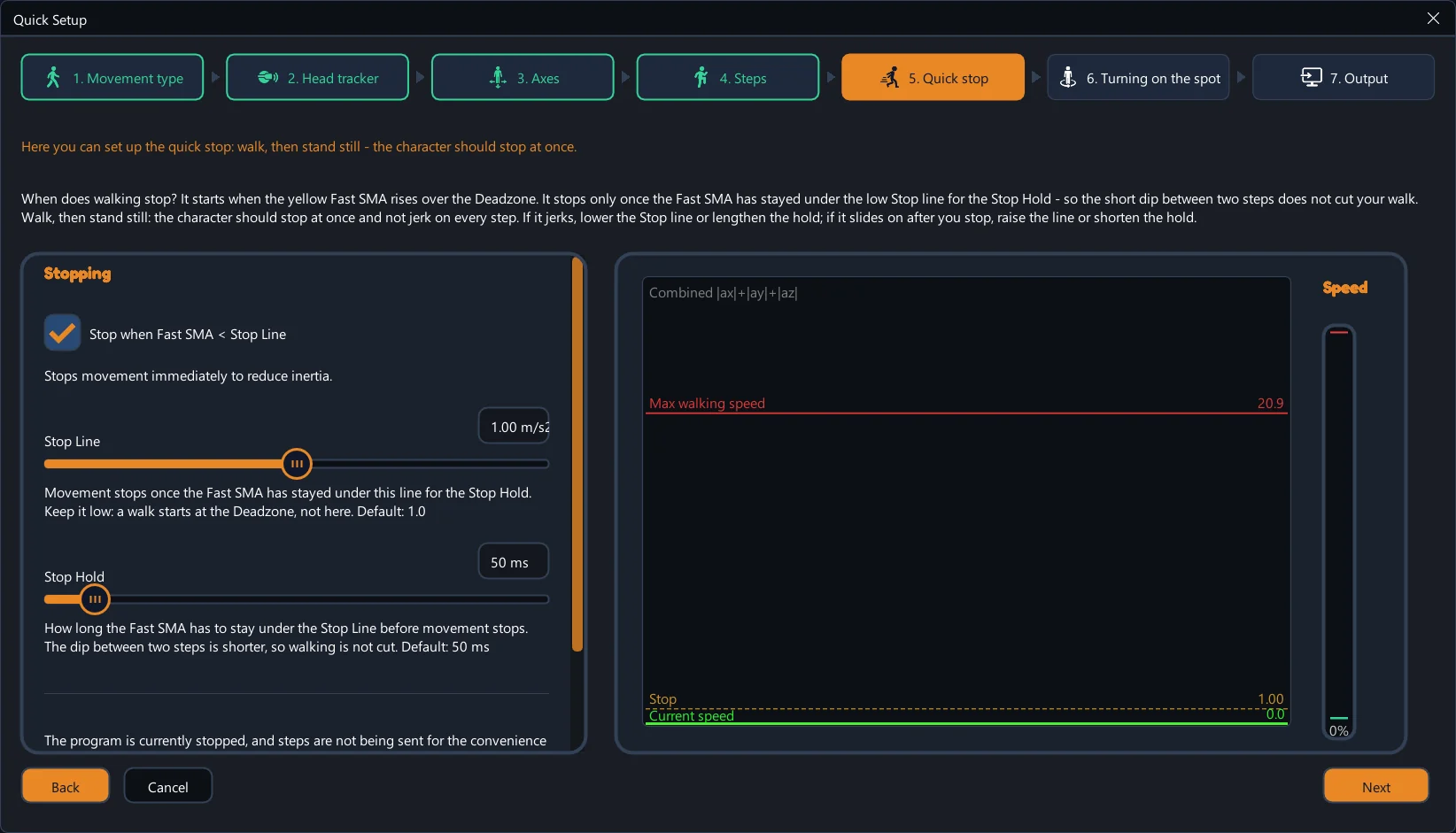
Quick stop: walk, then stand still - the character should stop at once and not jerk on every step. If it jerks, lower the Stop Line or lengthen the Stop Hold; if it slides on after you stop, raise the line or shorten the hold. See the stop on Steps.
Turning on the spot, first page: when you turn around without walking your feet shuffle, and that reads as steps. Under Turn is measured from pick Follow Main Input, Headset or Chest tracker, then turn around: one of Raw X, Raw Y, Raw Z swings with you - set it as Turn axis and check that Turn now and Result follow. If the page says the tracker is not reporting, nothing will be damped.
Second page: tick Damp steps while you turn, turn around on the spot and shape the first curve until the graph stays empty while you turn. Then walk and turn at once: the second curve sets from which walking speed a turn no longer slows you. Turn Damping lives on Steps. (Turning the character by turning your body is something else - that is Turn, not set up here.)
A treadmill gets the Steps page but neither the quick stop nor turn damping - see Treadmills.
Pick how the movement reaches the game. The list follows the Engine: under SteamVR you get SteamVR Controller (start with this one) and SteamVR Hook, under OpenXR the OpenXR API Layer, and with any engine Xbox Controller (vJoy), Keyboard, VRChat OSC and outputs added by plugins. A label such as "(driver registration required)" says what is still missing. For a driver that only needs registering, the page shows REGISTER DRIVER right there, then RESTART STEAMVR (for the OpenXR layer, restart the game). A plugin that is not installed or is switched off is handled after you finish, from the red bar at the top of the main window. Which output to choose is on Outputs; downloading and registering on Plugins and drivers.
The Test Room is a small VR scene for trying your movement before a real game - walking, sprinting, jumping, crouching. It reads the movement straight from BodyWalkVR, so it shows whether the walking itself is right before any game or driver is involved. Launch it any time with Launch Test Room in the top row. More on Test Room.
START, at the right of the top row, sends the movement to the game; STOP pauses it. Quick Setup presses START itself when it finishes. Starting and stopping without the mouse is on Start and stop without the mouse.
RESET CENTER (on Main, Direction and in Quick Setup) tells the app what standing still looks like. Stand straight, face the way that should be forward, and press it. The visualizer above it shows what the game receives: lean, and the dot moves. Press it again whenever forward has drifted. It has a key - F6 by default - and can be bound to a controller button, so you can recentre without taking the headset off; see Main.
Walks in the Test Room but not in your game? The walking is fine; the output is not reaching that game. With SteamVR Controller, the usual cause is that the game has no binding for BodyWalkVR's controller yet: press Game profile beside the Output on Main, pick the game and restart the game. Everything else about outputs is on Outputs, and Status › Check the chain finds where the chain breaks - see The game does not move.